Ticket sales and QR scanner for your event
Sell tickets online, email a QR ticket and scan at the door with a regular smartphone.
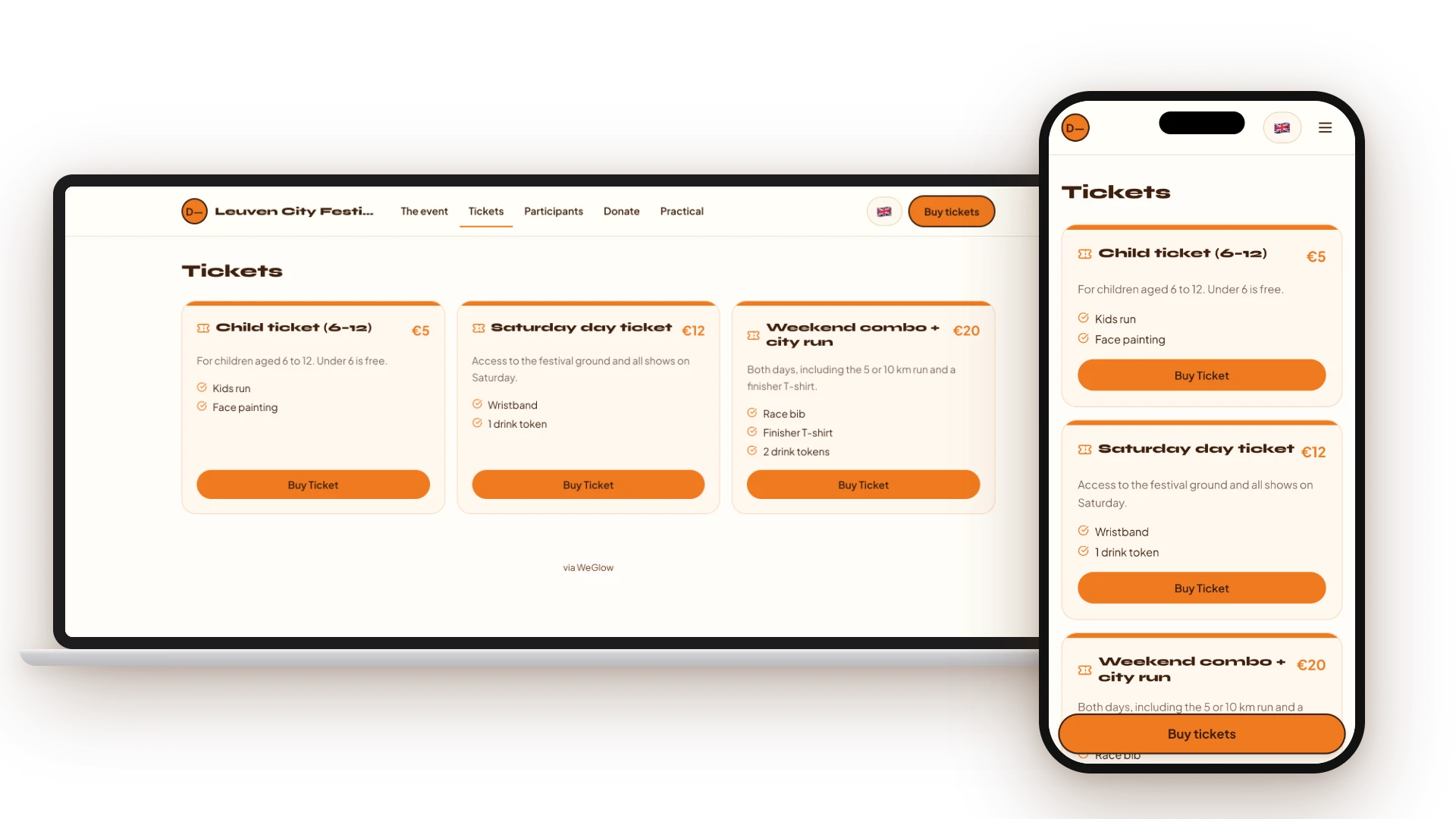
With WeGlow Ticketing you sell tickets directly on your organisation’s event page. The buyer pays online, receives a PDF ticket with a QR code by email and shows it at the entrance. A ticket is only created once the payment is confirmed.
At the door you scan with the camera of a regular smartphone, with no extra hardware. Volunteers do not log in: they open a scan link and enter a PIN. You see in real time how many people are inside.
Key facts
What you can set per event and how scanning works.
- Ticket types
- Own name, price in euros, available quantity (or unlimited), description and sales period per type
- Per order
- Configurable minimum and maximum; never more than 20 tickets per order
- Service costs
- By default checkout shows “Service costs (5%)” on top of the ticket price for the buyer
- QR ticket
- PDF in the confirmation email with a QR code per ticket; resending is possible
- Scanner
- Scan link plus a PIN of 4 to 6 digits; no login for volunteers
- Scan result
- Green = valid, amber = already scanned, red = invalid
- Check-in count
- Refreshes every 15 seconds, so several scanners share one count
- Export
- Excel with a sheet per ticket type and a sheet for donations
- Price
- Included in the Free plan (€0 per month); Pro costs €40 per month
How do you set up ticket sales?
On the event page you create ticket types, for example early bird, standard or VIP. Per type you set price, quantity, availability, sales period and a minimum and maximum per order. During checkout WeGlow briefly holds the places, so you never sell more than your capacity.
How does scanning at the entrance work?
You share the scan link and PIN, for example via WhatsApp. The volunteer scans with the phone camera and sees green for a valid ticket, amber for an already scanned ticket and red for an invalid one. Several phones can scan at once, and one ticket can never count as valid twice.
What do you do after the event?
You export the attendee list to Excel: a sheet with everyone, a sheet per ticket type and a sheet with the donations buyers made at checkout. Each row shows name, email, ticket type, status, check-in time and ticket code.
Frequently asked questions
How do I set up ticket sales for my event?
Open the event page in your dashboard, activate the ticket module, add ticket types with price and quantity and publish. Buyers pay online and then receive their QR ticket by email.
Can I create multiple ticket types?
Yes. Think early bird, standard and VIP, each with its own name, price, available quantity, description and sales period. Per type you can also set a minimum and maximum per order.
How does scanning at the entrance work?
Every buyer receives a PDF ticket with a QR code by email. At the entrance the volunteer scans that code with the camera via the scan link, after entering the PIN. Green is valid, amber is already scanned and red is invalid.
Does the buyer pay extra costs?
By default checkout shows 5% service costs on top of the ticket price for the buyer. Buyers can also optionally add a donation at checkout, if you enabled that for the event.
Can I use free tickets or discount codes?
That is not available today. Every order goes through an online payment, and checkout has no field for discount codes. You set prices per ticket type.
Sources
Last updated: