Build campaign pages in your own branding
One visual editor for your campaign story, colours, amounts and thank-you page.
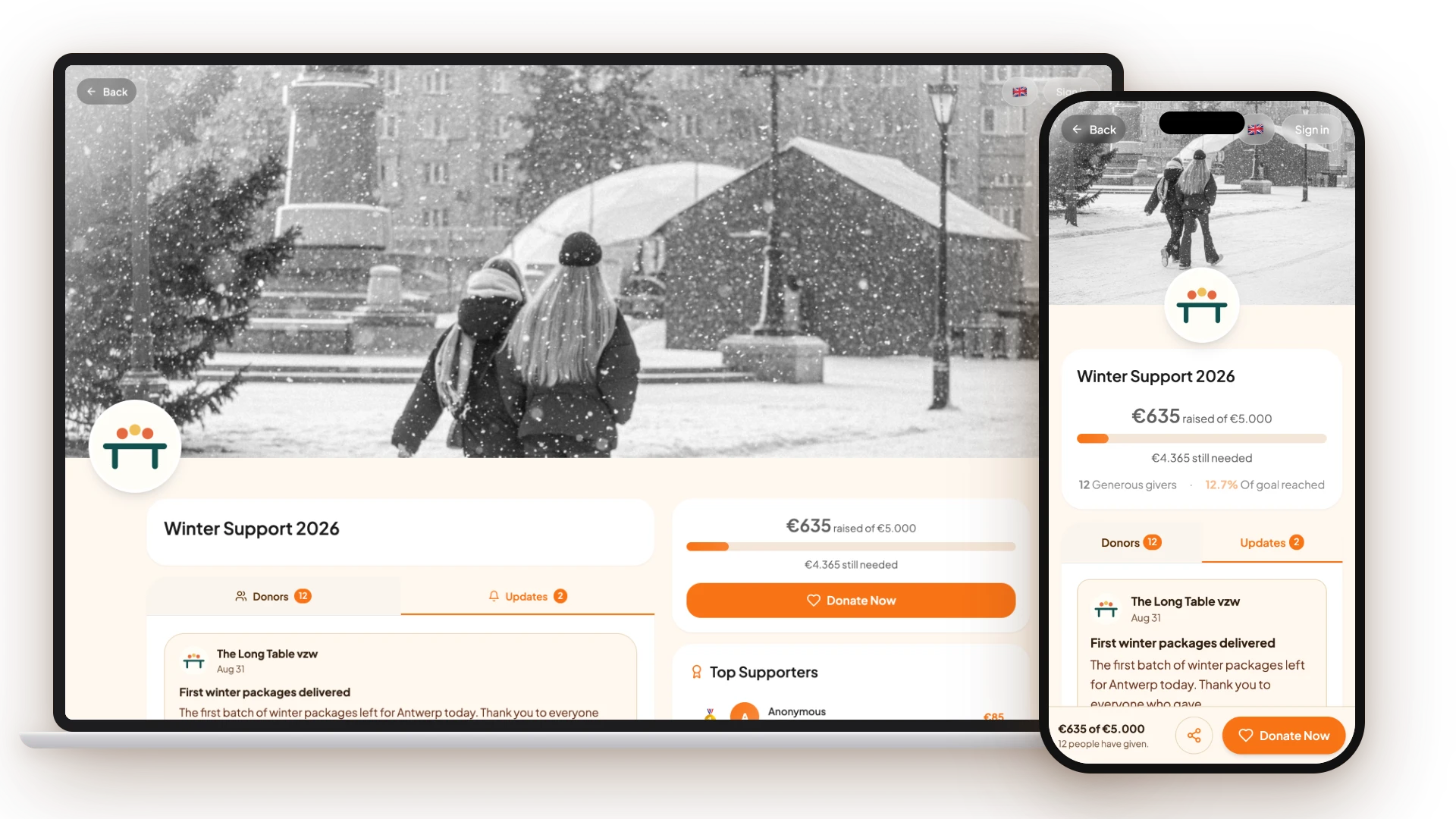
A WeGlow campaign is a page of your organisation with its own story, goal and amounts, at weglow.world/o/your-organisation/c/campaign. You build it in a visual editor, without a designer or code, and the page adapts to your colours.
Every campaign has a story in all of your organisation’s languages, a banner image, a thank-you page with thank-you email and a tab with donors and updates. You can run several campaigns at once, each with its own colour palette.
Key facts
What the WeGlow campaign editor lets you set.
- Editor sections
- Information, images, amounts, branding, thank-you page and publishing
- Colours
- 4 adjustable colours (button, button text, page background, card text) and 6 ready-made palettes
- Contrast check
- A WCAG contrast indicator warns about colour combinations that are hard to read
- Banner image
- Cropped to a 1.91:1 ratio; your organisation logo sits as a round badge on the banner
- Languages
- Title and story per language your organisation works in
- Goal
- Optional goal amount; status draft, live or finished (no fixed end date)
- Price
- Included in the Free plan (€0 per month), with 5% transaction costs on donations; Pro (€40 per month) adds widgets and upselling
How do you build a campaign page?
You open the campaign editor in your dashboard, write title and story per language, choose a banner image, set your amounts and goal, and pick a colour palette. Then you write the thank-you page and publish. Whatever you enter shows immediately in the preview.
Why does your own style help?
Donors recognise your organisation by name, logo and colours. The editor also looks after readability: the contrast indicator follows the WCAG guidelines for text contrast, so buttons and text stay readable for people with low vision.
What happens after the gift?
The donor lands on your thank-you page with your message and receives a thank-you email that you write yourself. In the donors and updates tab visitors see who already gave, and you can post updates to keep the campaign alive.
Frequently asked questions
Can I use my own logo and colours?
Yes. The logo comes from your organisation profile and appears as a round badge on the banner. You set the page colours (button, button text, background and card text) per campaign, or start from one of the 6 palettes.
Do I need technical knowledge?
No. The editor is fully visual and works without code. You fill in fields, choose images and colours, and see the result immediately in the preview.
Can I run several campaigns at once?
Yes. You create a separate campaign page for each action, with its own story, amounts and colours. In your dashboard you filter by live, draft, finished and archived.
Can I set an end date?
No, a campaign has no fixed end date. You set the status to finished yourself when the action ends, after which the campaign is shown as finished.
Is the campaign page multilingual?
Yes. You enter title and story per language your organisation works in, and visitors pick their language on the page.
Sources
Last updated: